
Managing Users
Over time you will want to add, update, and disable users from your Nest subscription. To do so you must be a Manager in your Nest subscription.
to add a new user
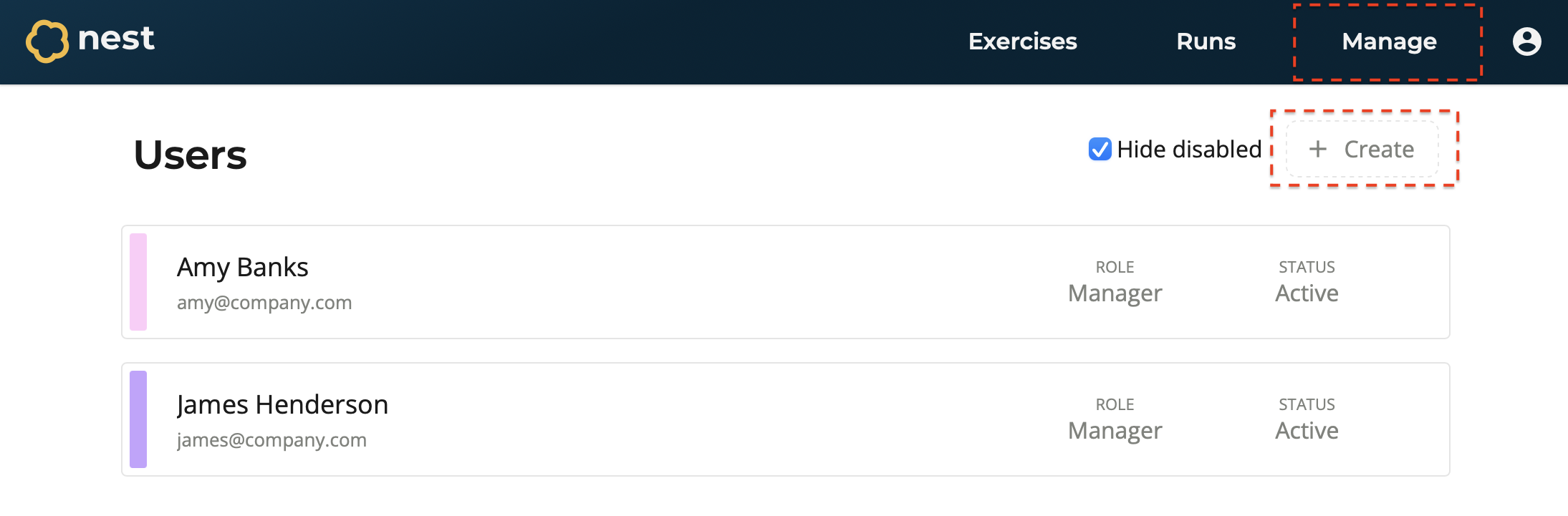
Navigate to the Manage page.
Select Create.
On the User form, enter information for this user:
Display Name - The display name of the user. For example, John Smith.
Email - The email of the user. For example, john@company.com.
Role - Assign the user a role within Nest. Learn more about user roles.
Select Confirm.
The user is created and added your Nest subscription. An email will be sent to the user with instructions on how to login.
To update user details
Navigate to the Manage page.
Select the user you wish to update.
On the User form, update the user’s details as required.
Select Confirm.
To disable a User
Navigate to the Manage page.
Select the user you wish to disable.
On the User form, select Disable.
Confirm the action by entering the user’s name, then select Confirm.
The user is disabled. Disabled users will no longer be able to access the subscription and by default are hidden from your list of users.
To view disabled users in your subscription, select the Hide Disabled toggle.
To Reactivate a User
Navigate to the Manage page.
Turn off the Hide Disabled toggle to view disabled users in your subscription.
Select the user you wish to reactivate.
On the User form, select Reactivate.
The user is reactivated within your Nest subscription.