
Operating Runs
Nest provides powerful flexibility when running your exercises.
to Start/pause all groups
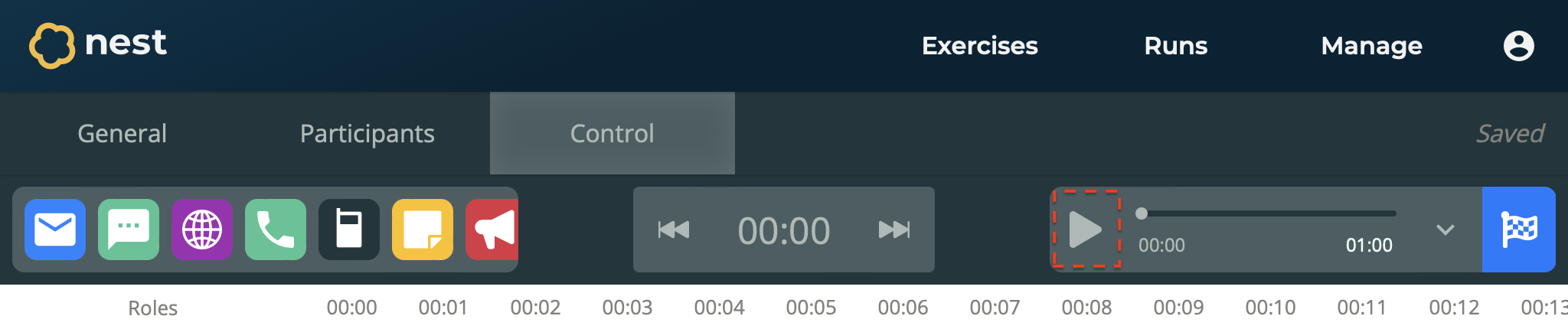
Open your run from the Runs page.
Navigate to the Control section.
On the Remote, select Start/Pause.
The exercise starts/pauses for all groups.
To start/pause a specific group
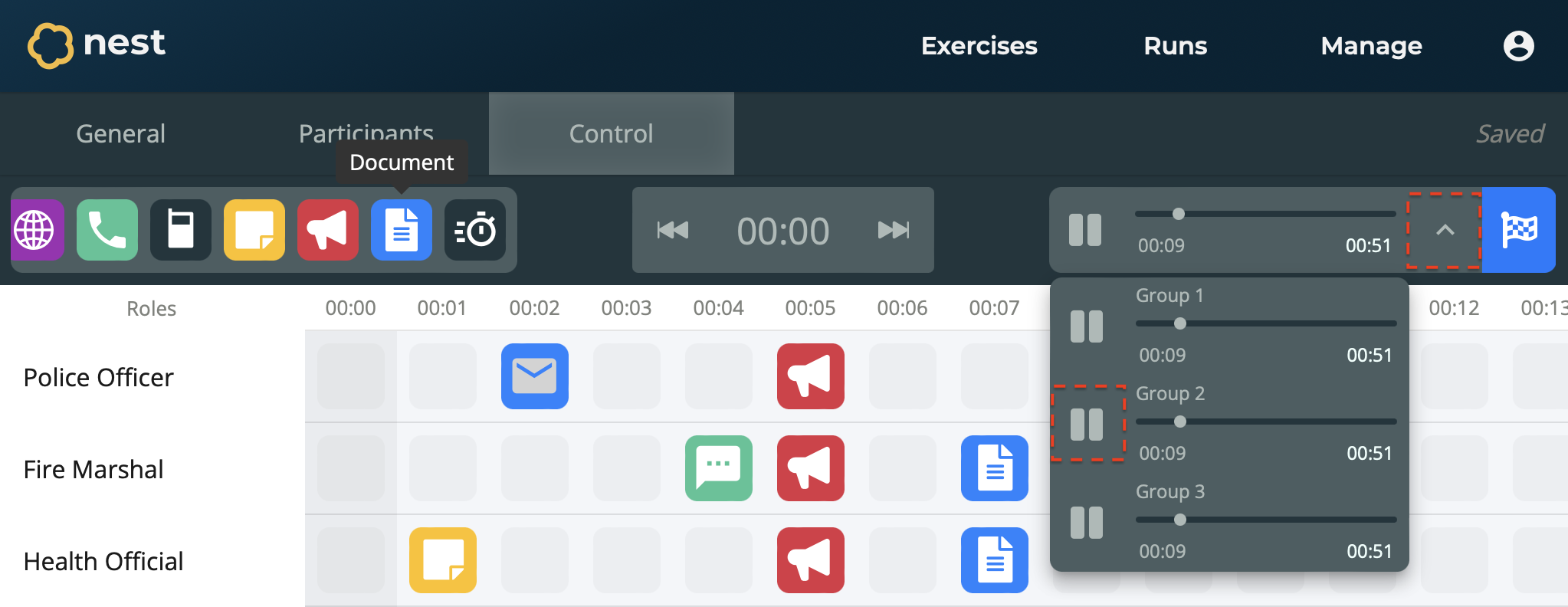
Open your run from the Runs page.
Navigate to the Control section.
Open the Remote to see all the individual group remotes.
Select Start/Pause on the group you wish to start/pause.
The exercise starts/pauses for the specific group.
To fast-forward/rewind all groups
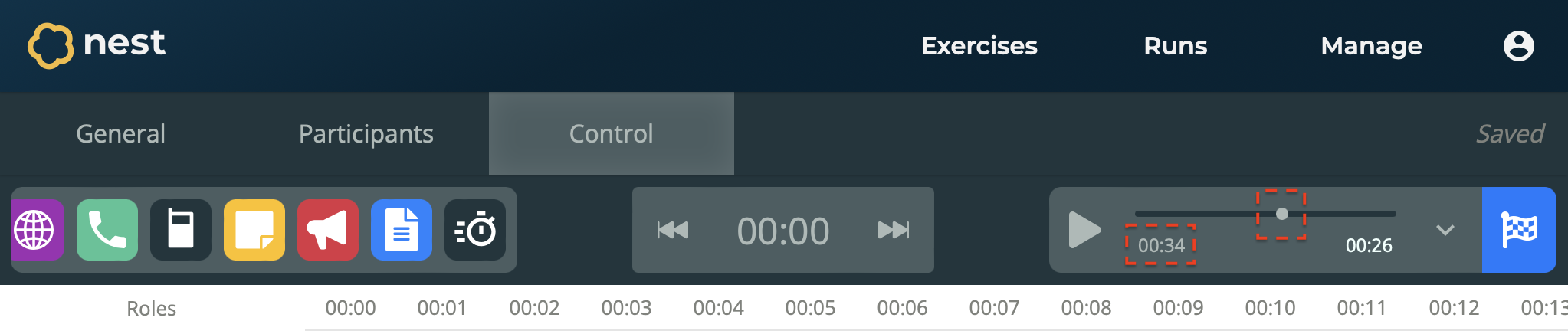
Open your run from the Runs page.
Navigate to the Control section.
On the Remote, either:
Drag the Slider to the desired minute of the exercise.
…or…
Type the desired minute into the Timecode, then select anywhere outside the remote.
Choosing a minute behind in time, will rewind all groups to that point of the exercise. Any decisions made by all participants during the period that has been rewound will be discarded.
Similarly, choosing a minute ahead in time will fast-forward all groups to that point.
To fast-forward/rewind a specific group
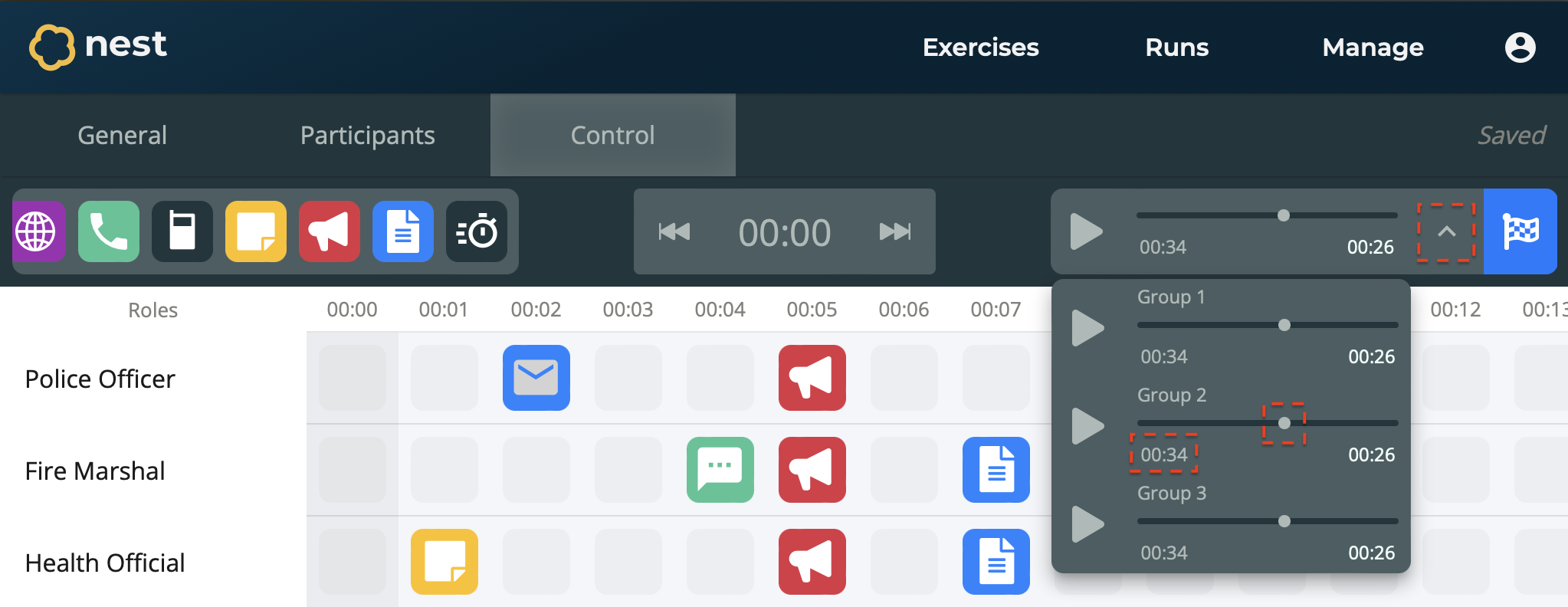
Open your run from the Runs page.
Navigate to the Control section.
Open the Remote to see all the individual group remotes.
On the remote of the group you wish to control, either:
Drag the Slider to the desired minute of the exercise.
…or…
Type the desired minute into the Timecode, then select anywhere outside the remote.
Choosing a minute behind in time, will rewind the specific group to that point of the exercise. Any decisions made by participants in that group during the period that has been rewound will be discarded.
Similarly, choosing a minute ahead in time will fast-forward the specific group to that point.
To send a live inject
Predefined injects in your exercise cannot be edited during a run. These are shown as greyed out in the control timeline. However you can send new Live Injects at any point during the exercise.
Open your run from the Runs page.
Navigate to the Control section.
Create a new inject onto the timeline the same way as when creating an exercise. Learn more about creating injects.
The only difference is the addition of a new field on the Inject form:
Send To Groups - The groups that will receive this inject. You can choose one, multiple, or all groups.
Select Confirm.
Your live inject is created and added to the timeline. It will be sent at the time you scheduled.
To finish the run
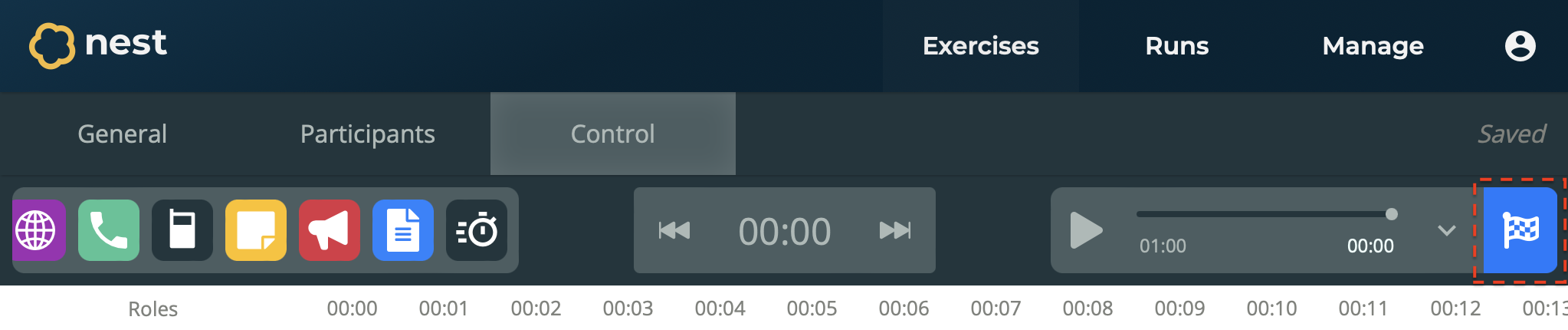
Open your run from the Runs page.
Navigate to the Control section.
Select Finish.
The run is finished.