
Managing Runs
Nest creates runs within a live environment. This means that any changes you make are automatically saved and published in real time.
to create a new run
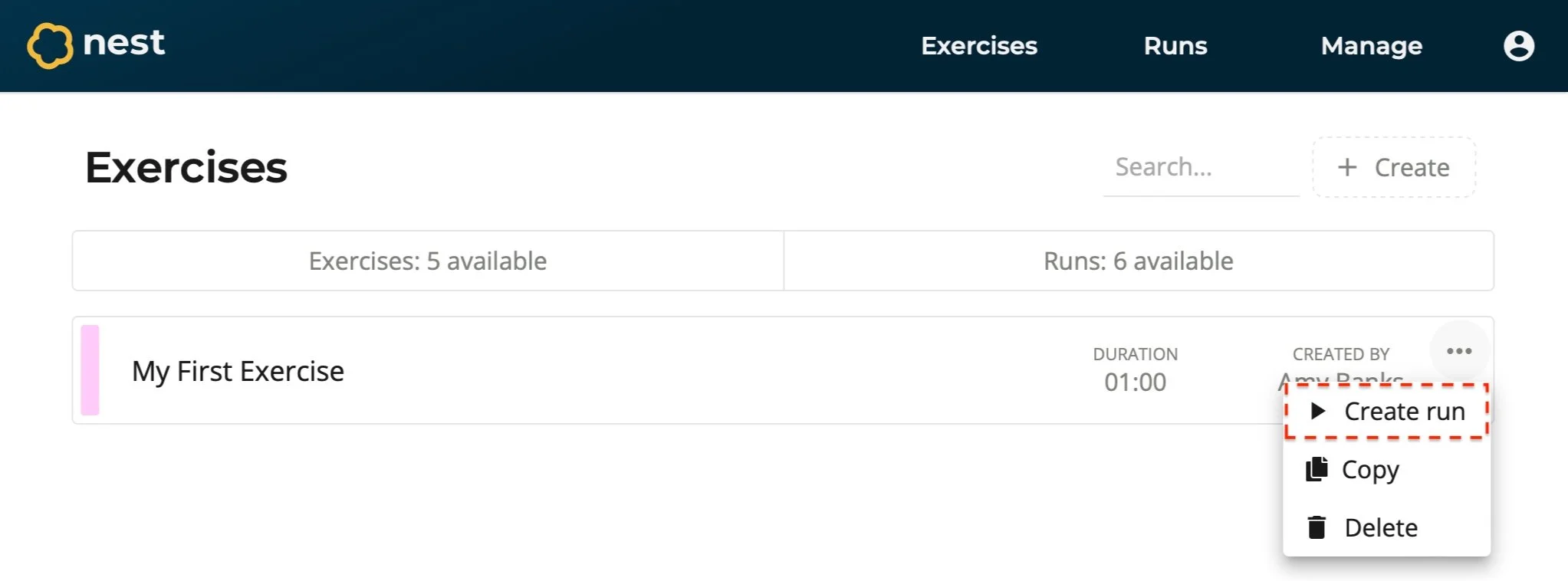
Navigate to the Exercises page.
Open the Options menu for the exercise you wish to run.
Select Create Run. You will be redirected to your new run.
In the General section, enter information for this run:
Name - The name of the run. For example, Exercise Black Box - Summer.
Welcome Message - The message presented to participants as they join your exercise. This typically includes the purpose of the exercise and any other relevant information they should know before starting. For example, This exercise evaluates the efficient flow of information between…
Exit Message - The message presented to participants at the end of the exercise. For example, Thank you for participating. Individual reports will be delivered electronically…
Landing Page Image - The background image presented to participants before the exercise has started.
Coordinator Details - The details of the person in charge of coordinating the exercise:
Name - The name of the coordinator. For example, Adam Smith.
Avatar - The avatar of the coordinator.
Email - The email of the coordinator. For example, adam.smith@company.com.
Phone Number - The contact number of the coordinator. For example, 01234 56789.
Navigate to the Participants section to set up groups of participants. Learn more about managing participants.
To Delete a run
Navigate to the Runs page.
Open the Options menu for the run you wish to delete.
Select Delete.
Confirm the action by entering the run’s name, then select Confirm.
The run is deleted.