
Getting Started
To Join an exercise
When an exercise is ready for participants to join, the exercise coordinator will send out email invitations containing a link to join the exercise.
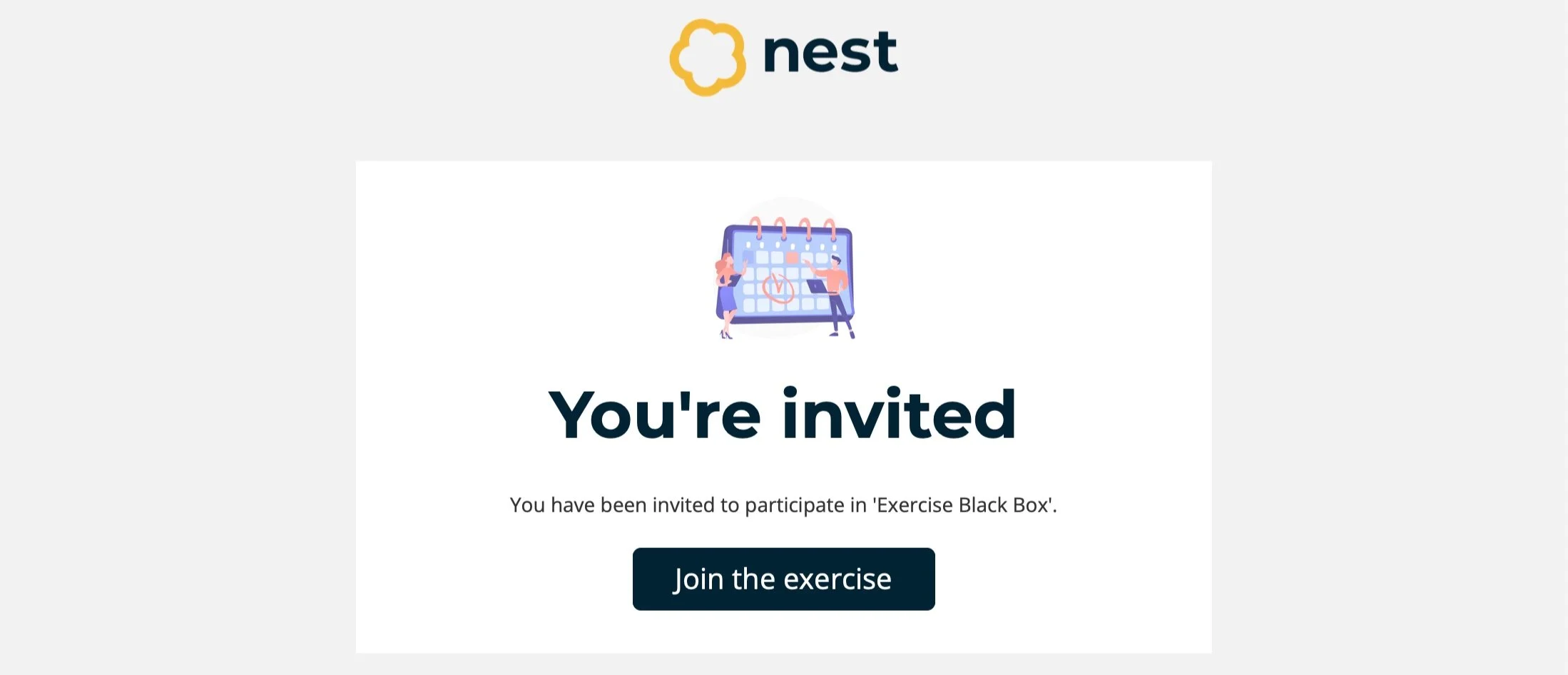
Open the Invitation Email in your inbox. If none has arrived, check your junk mail or contact the exercise coordinator.
Select Join The Exercise. You will be redirected to the exercise Landing Page.
You have joined the exercise.
to learn your assignments
When you join an exercise, you are taken to a Landing Page. This is a holding area before the exercise starts, containing key information about the exercise and what Group and Roles you have been assigned.
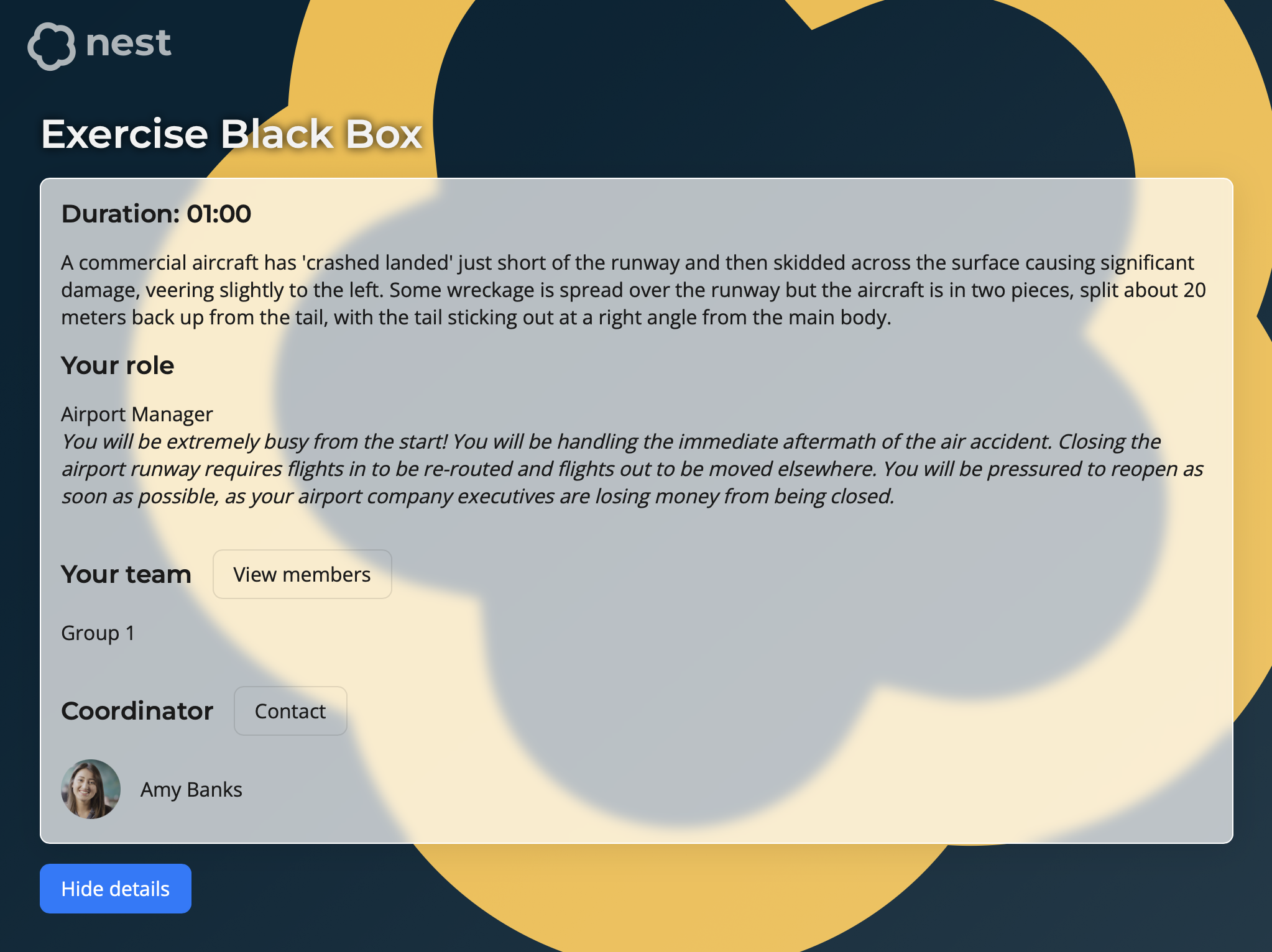
Upon joining the exercise Landing Page, select Show Details.
Review the information displayed:
Duration - The duration of the exercise. For example, 01:00 (1 hour).
Welcome Message - A brief introduction to the exercise. For example, A commercial aircraft has ‘crash landed’…
Your Role(s) - The role(s) you have been assigned to play during the exercise, with a description of what is expected of you for each. For example, Airport Manager.
Your Team - The Group that you are in for the exercise. For example, Group 1.
Team members within the same group will participate alongside you with their own assigned roles. To view individual members and their roles, select View Members.
Coordinator - The exercise coordinator. For example, Amy Banks.
If provided, you can view their contact details by selecting Contact to get in touch with any issues that may arise during the exercise.
To navigate the exercise
When the exercise starts, the Landing Page disappears and you are taken to your personal Nest environment. The first page you will see is the Exercise Page, which displays the same information seen on the landing page so you can refer back to it at any point.
On the left side is the Navigation Bar, where you can quickly navigate to the various injects that you receive throughout the exercise. Injects are grouped by type, and are represented by an Inject Icon. To see the full name of the inject types, select Expand on the navigation bar.
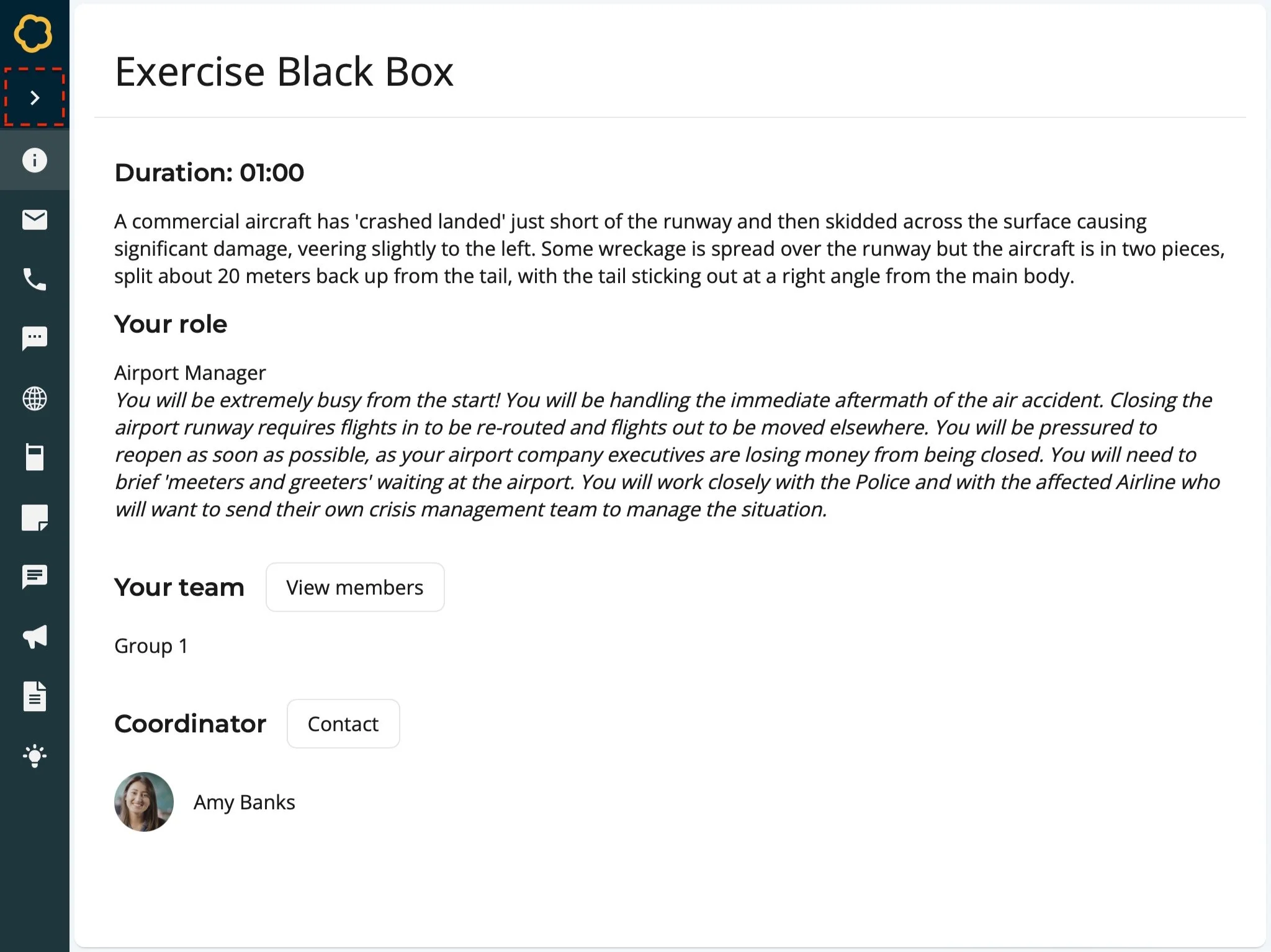
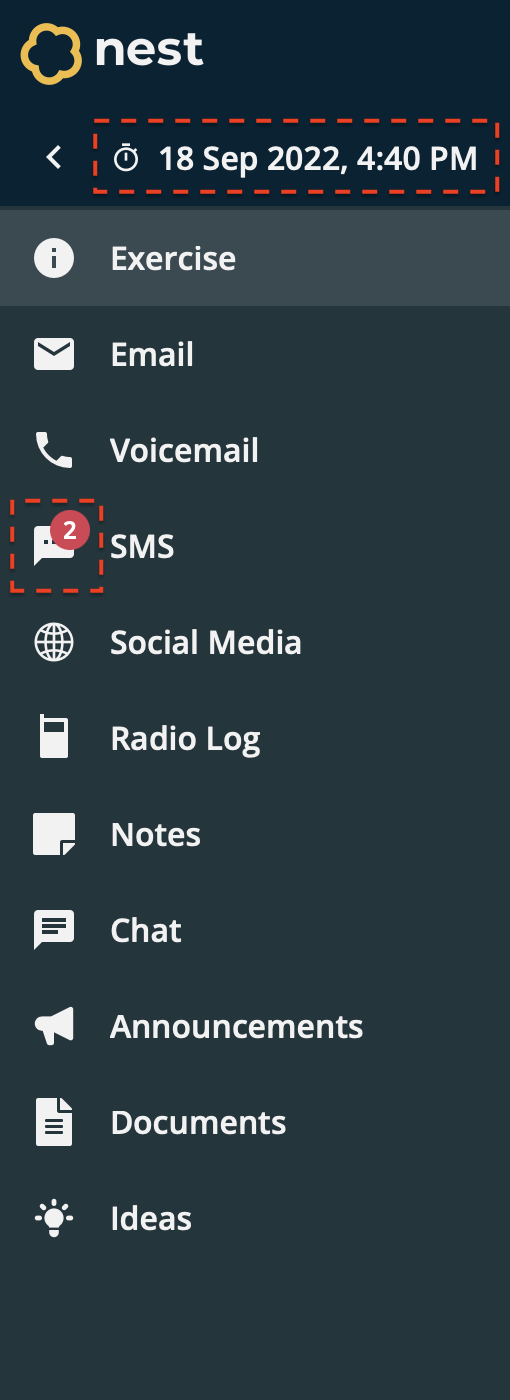
Expanding the navigation bar also displays the current Exercise Clock, showing the date and time the exercise is currently in. Depending on how the exercise has been designed, this may not be the actual date and time; for example it could represent a past or future event.
Throughout the exercise you will receive messages and injects that you will need to read and make decisions on. Unread messages are highlighted on the navigation bar with a Badge. The number displayed on the badge represents the number of missed messages on that page. This helps you quickly identify where you need to visit during the course of the exercise.