
Managing Your Timeline
The Timeline section is where you manage the content of your exercise. The timeline is a grid, with each row representing a role in your exercise, and each column representing a minute of time.
Each row contains empty slots, one for each minute of your exercise. It is into these slots that you will define what injects will be sent and at what time. Learn more about creating specific inject types.
To change exercise duration
Open your exercise from the Exercises page.
Navigate to the Timeline section.
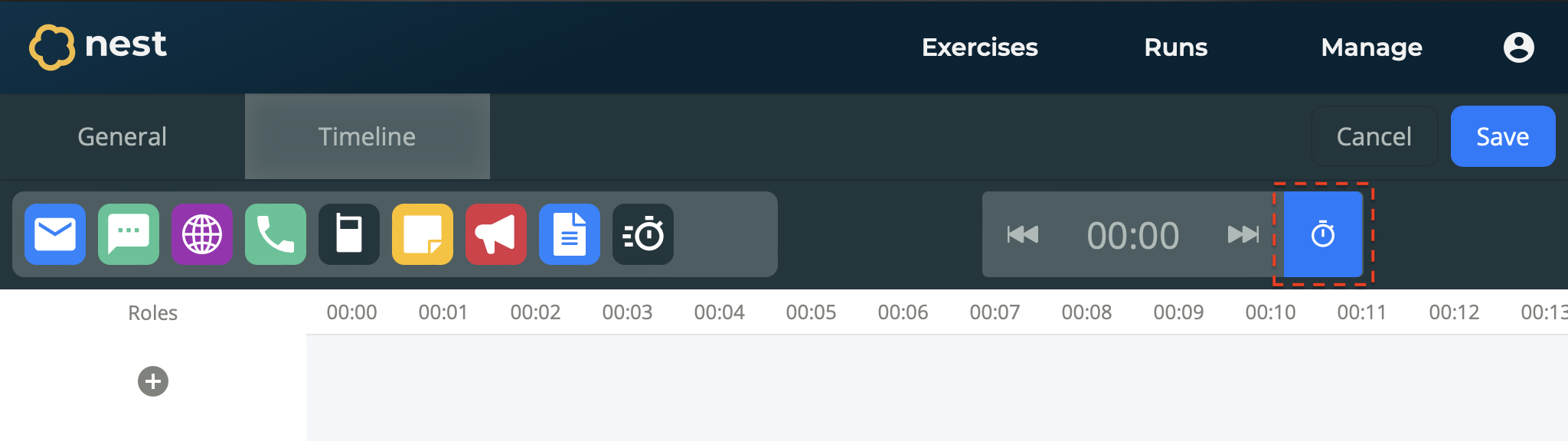
Select Duration in the header of the timeline.
Update the duration as required (in hours and minutes).
Your exercise duration is updated and the number of columns in your timeline changes to reflect this.
To add an exercise role
Open your exercise from the Exercises page.
Navigate to the Timeline section.
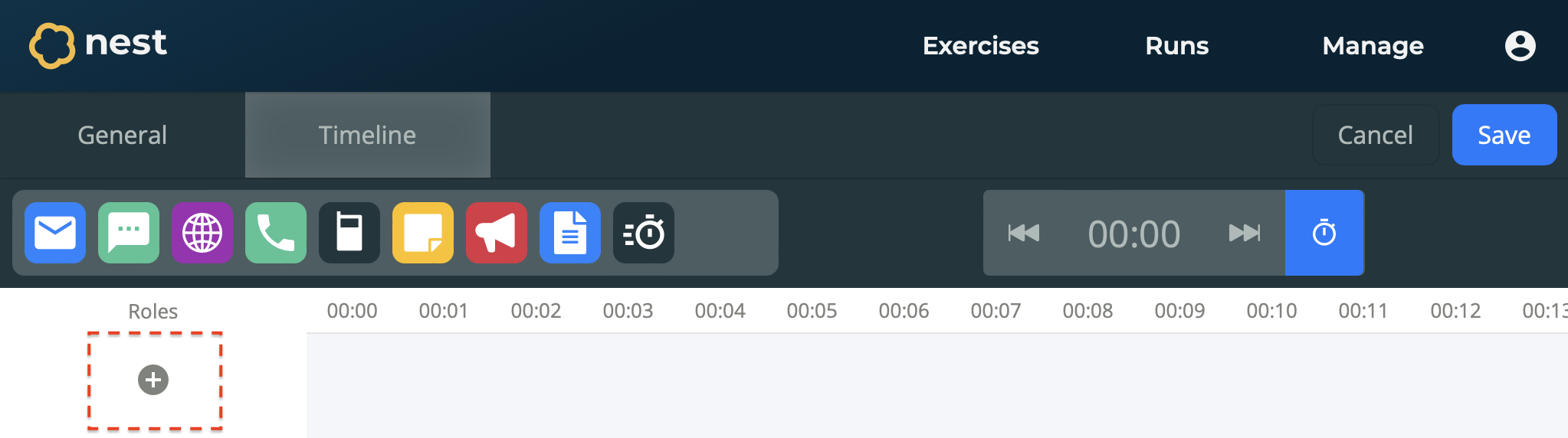
Select Create Role (⊕) from the sidebar of the timeline.
On the Role form, enter information for this role:
Name - The name of the role. For example, Police Officer.
Description - A brief description of the role’s responsibilities within the exercise. This will be shown to participants when they join the exercise. For example, “You will be responsible for… You should be careful to…”.
Your role is created and added as a new row within your timeline.
To update an exercise role
Open your exercise from the Exercises page.
Navigate to the Timeline section.
Select the Role you wish to update.
On the Role form, update the role’s details as required.
Select Confirm.
To delete an exercise role
Open your exercise from the Exercises page.
Navigate to the Timeline section.
Select the Role you wish to delete.
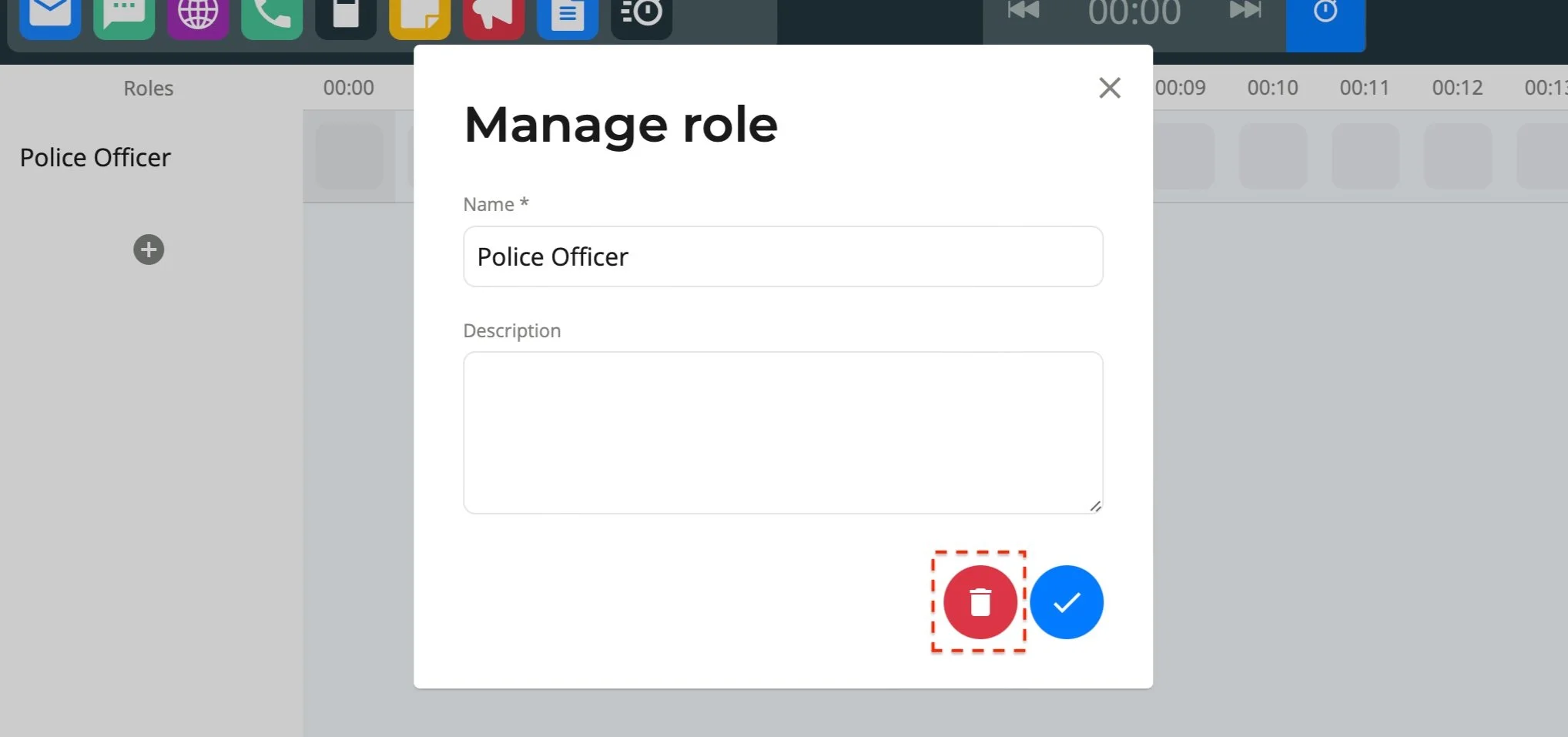
On the Role form, select Delete.
The role is deleted, including any injects sent only to that role.
to reorder roles
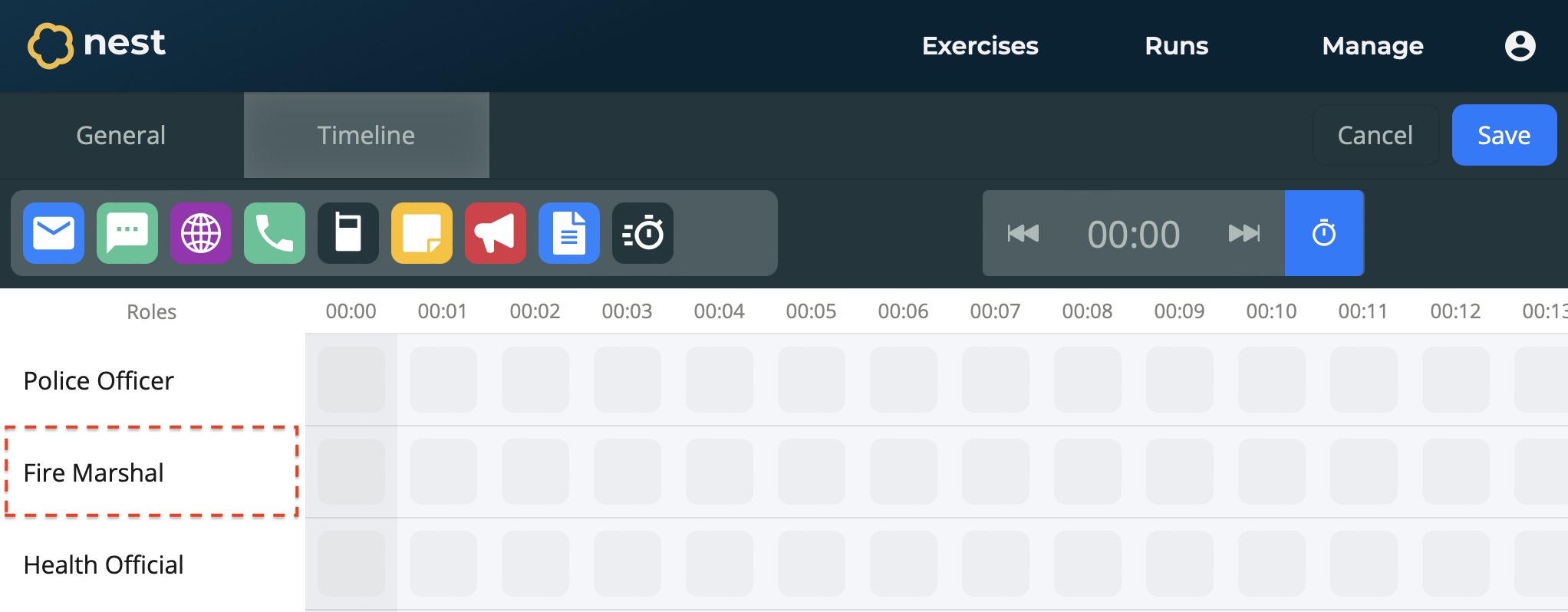
Sometimes you may wish to reorder roles on the timeline, perhaps in order of chain of command.
Open your exercise from the Exercises page.
Navigate to the Timeline section.
Drag the Role you wish to reorder to the desired position.
The role is moved into its new position in the timeline.
to skip to a point in the timeline
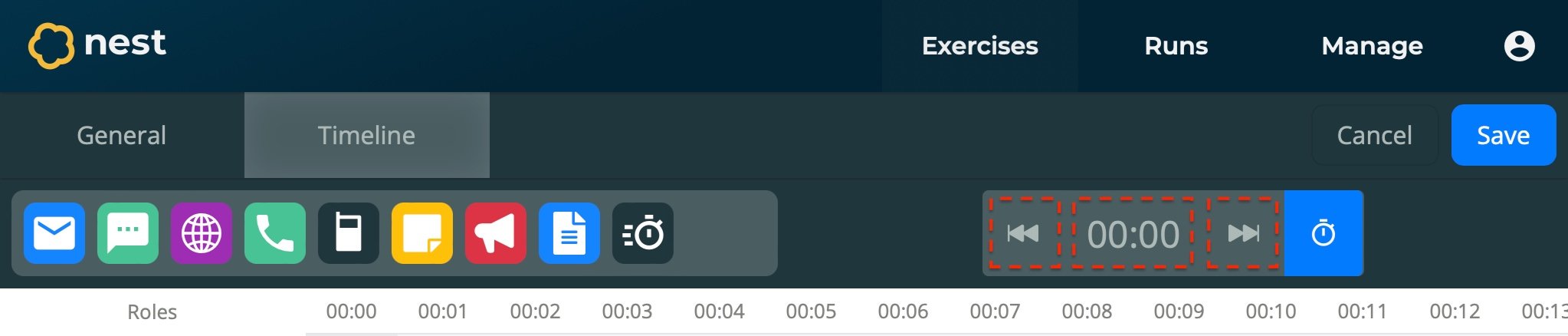
Normal navigation around the timeline involves scrolling along the page to the desired minute you are searching for. To search for a specific point in the timeline more quickly, use the Timecode:
Open your exercise from the Exercises page.
Navigate to the Timeline section.
Either enter the minute you wish to skip towards in the Timecode, or use the Skip buttons to quickly go to the start/end of the timeline.
Your position in the timeline is moved to the desired point.