
Managing Exercises
To create and manage an exercise, you must be either a Manager or a Creator in your Nest subscription. Learn more about user roles.
to add a new exercise
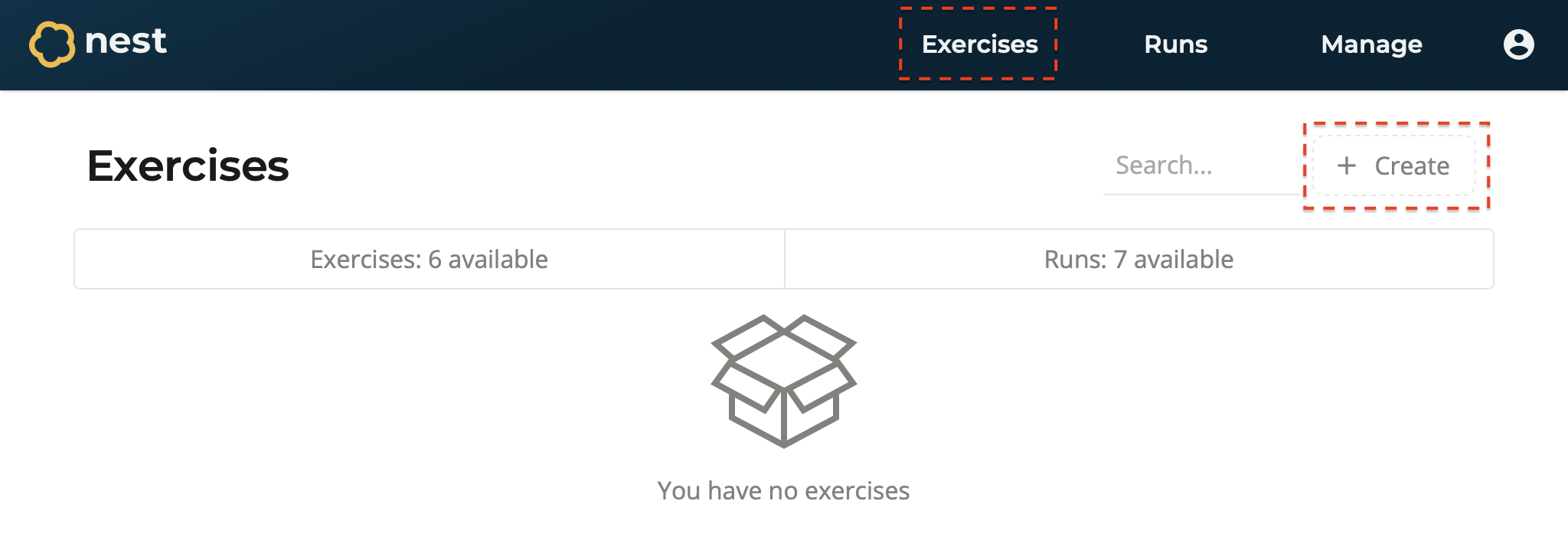
Navigate to the Exercises page.
Select Create. You will be redirected to your new exercise.
In the General section, enter information for this exercise:
Exercise Name - The name of the exercise. For example, Airplane Crash.
Scenario Description - A brief description of the scenario to remind authors of the aim and objectives of the exercise. This text will not be visible to exercise participants.
Exercise Clock - Nest allows you to choose how the date and time should be displayed to participants during the exercise:
Initial Value - The start date and time of the exercise clock. By default, both the date and time are left blank, meaning Nest will use the actual start date and time of when you run the exercise. You can override either of these with a fixed date or time.
For example, you could choose Date = Blank and Time = 12:30. This means when you run the exercise, the exercise date will start as today’s date, and the exercise time will start as 12:30pm.
Clock Type - Choose to interpret the Initial Value as Universal Time or Exercise Time.
Selecting Universal Time will convert the exercise clock to participants’ local date and time.
Selecting Exercise Time will show the exercise clock as-is for every participant.
Navigate to the Timeline section to start populating your exercise. Learn more about managing your timeline.
Select Save.
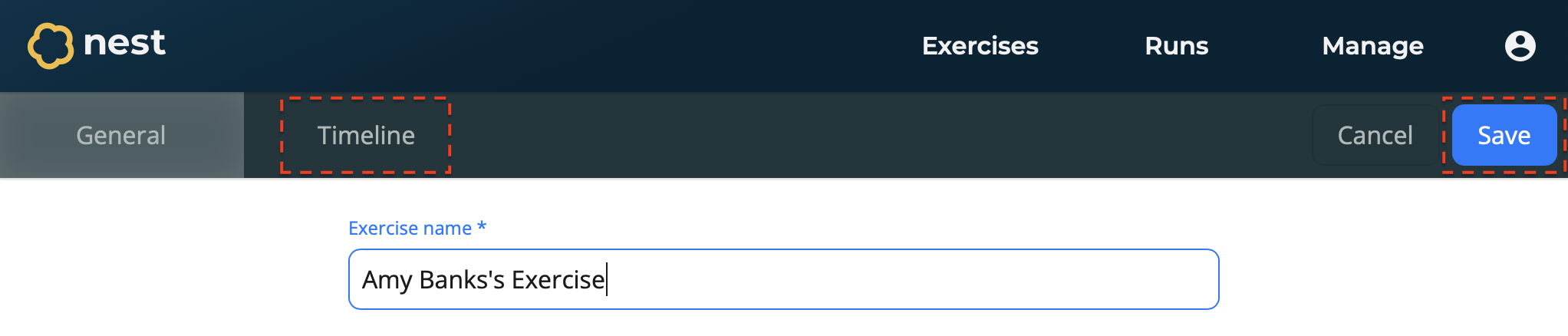
At any point you can cancel any changes made by selecting Cancel.
To update an exercise
Navigate to the Exercises page.
Select the exercise you wish to update.
Update the exercise as required.
Select Save.
To Delete an exercise

Navigate to the Exercises page.
Open the Options menu for the exercise you wish to delete.
Select Delete.
Confirm the action by entering the exercise’s name, then select Confirm.
The exercise is deleted.
To copy an exercise
Navigate to the Exercises page.
Open the Options menu for the exercise you wish to delete.
Select Copy.
A copy of the exercise is created and appears in your exercises list.