
Making Decisions
Every inject you receive will require you to make a decision, and each displays a Decision Menu next to it for you to do so. You can make one or multiple decisions for each inject.
Nest encourages you to work closely with your team members and agree joint decisions wherever possible. However you are responsible for recording the decisions that you make.
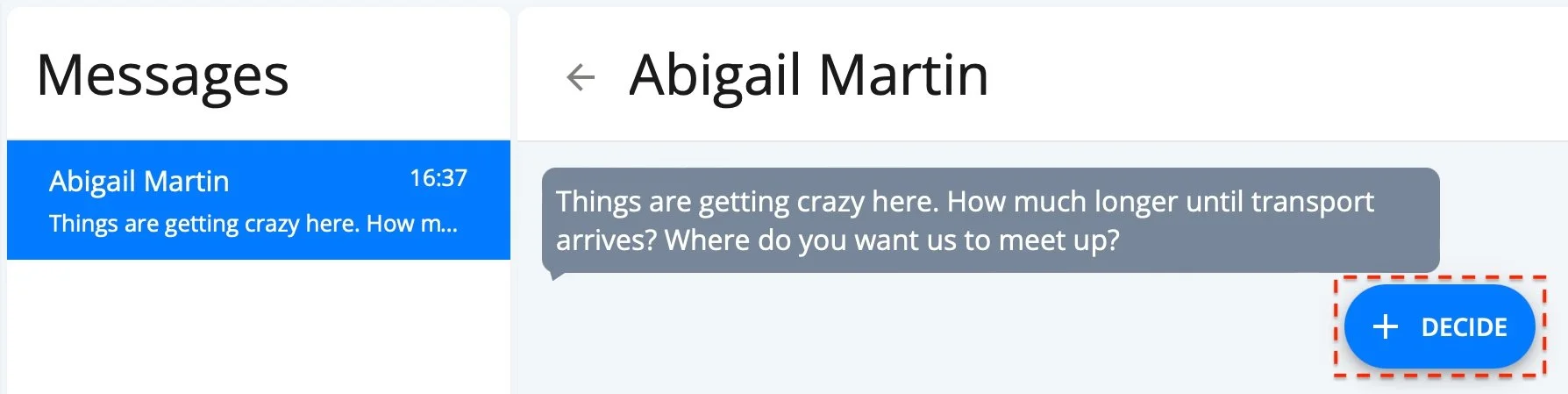
Each inject has an indicator as to whether it has been seen, and whether a decision has been made yet for that inject:

Unseen - Injects that have not been seen yet are marked with a circular icon.

Seen - Injects have have been seen but not decided upon have no icon.

Decision Made - Injects that have been decided upon are marked with a tick.
This will help you quickly identify which injects still require your attention so you don’t lose track of your progress.
To submit a decision for an inject
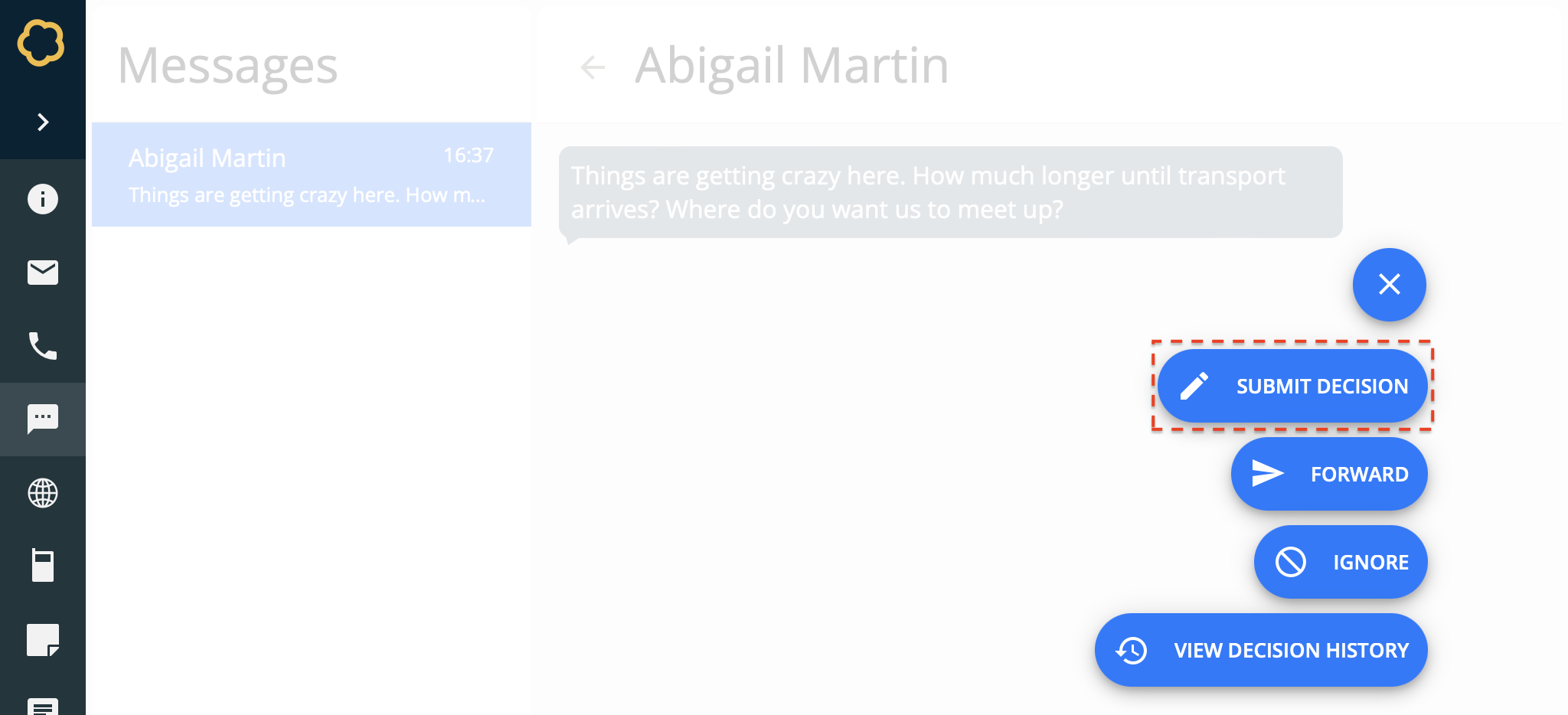
Navigate to the Inject you wish to submit a decision for.
Open the Decision Menu for that specific inject.
Select Submit Decision.
On the Decision Form, enter information for your decision:
Decision - The decision you have made for this inject. For example, Evacuate all affected people jointly with Silver Command...
Select Confirm.
The decision for the inject is submitted.
To forward an inject
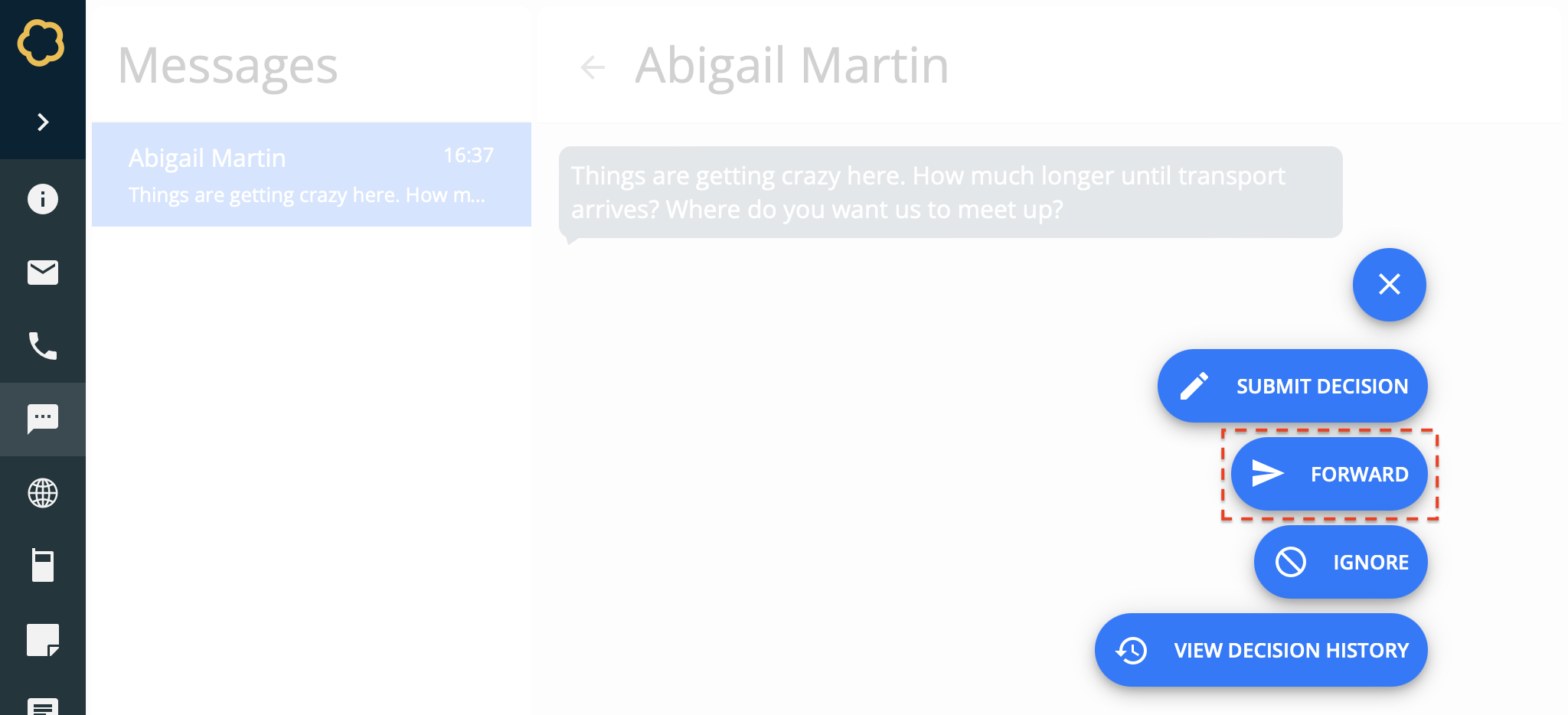
Navigate to the Inject you wish to forward to another participant.
Open the Decision Menu for that specific inject.
Select Forward.
On the Decision Form, enter information for your decision:
Send To - The roles you want to forward the inject on to. For example, Police Officer.
Message - An accompanying message attached to the inject being forwarded. For example, Can you please act as the appropriate link in the chain...
Select Confirm.
The decision for the inject is forwarded to the specified roles.
To ignore an inject
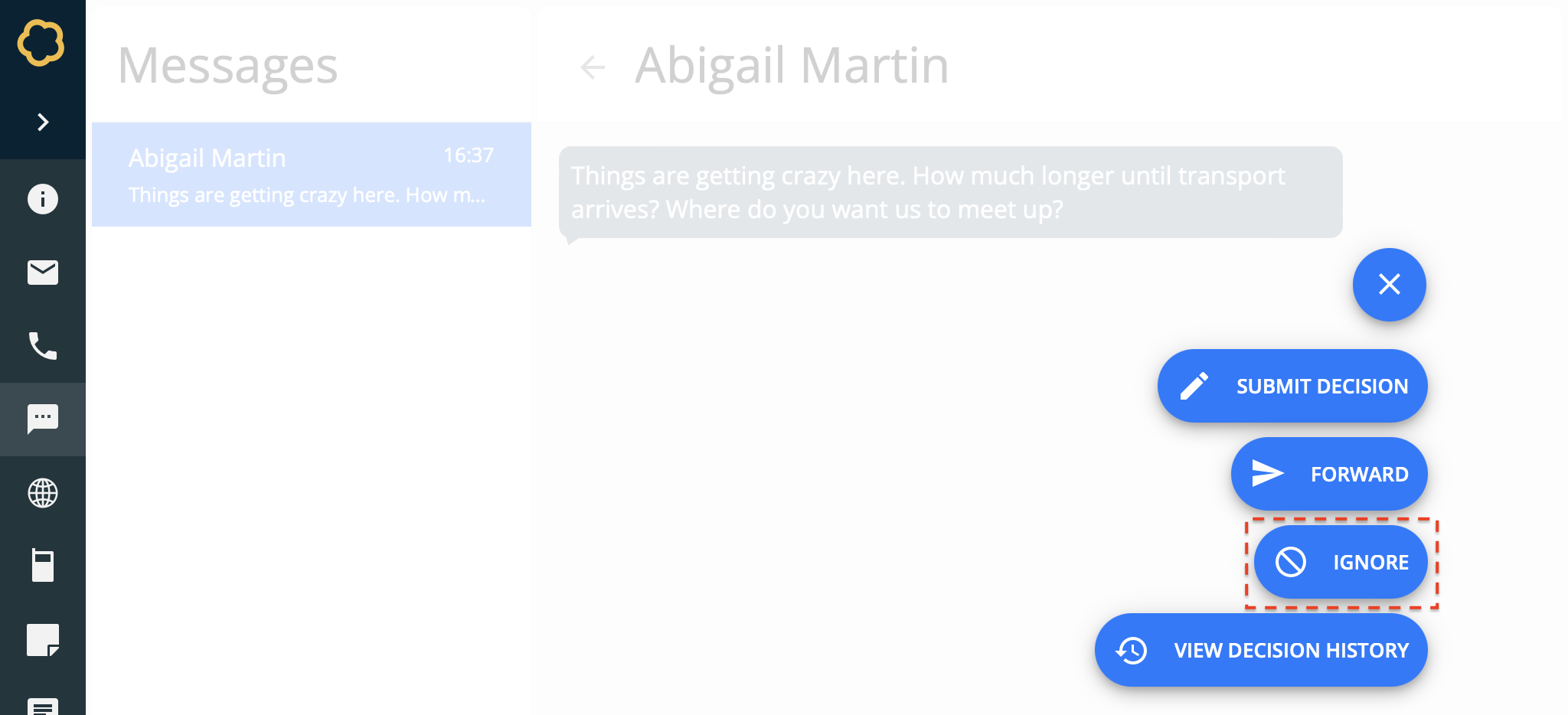
Navigate to the Inject you wish to ignore.
Open the Decision Menu for that specific inject.
Select Ignore.
On the Decision Form, enter information for your decision:
Comment - The explanation for you ignoring the inject. For example, Ignoring for now but will note down to contact Comms tomorrow…
Select Confirm.
The decision to ignore the inject is submitted.
to view your decisions
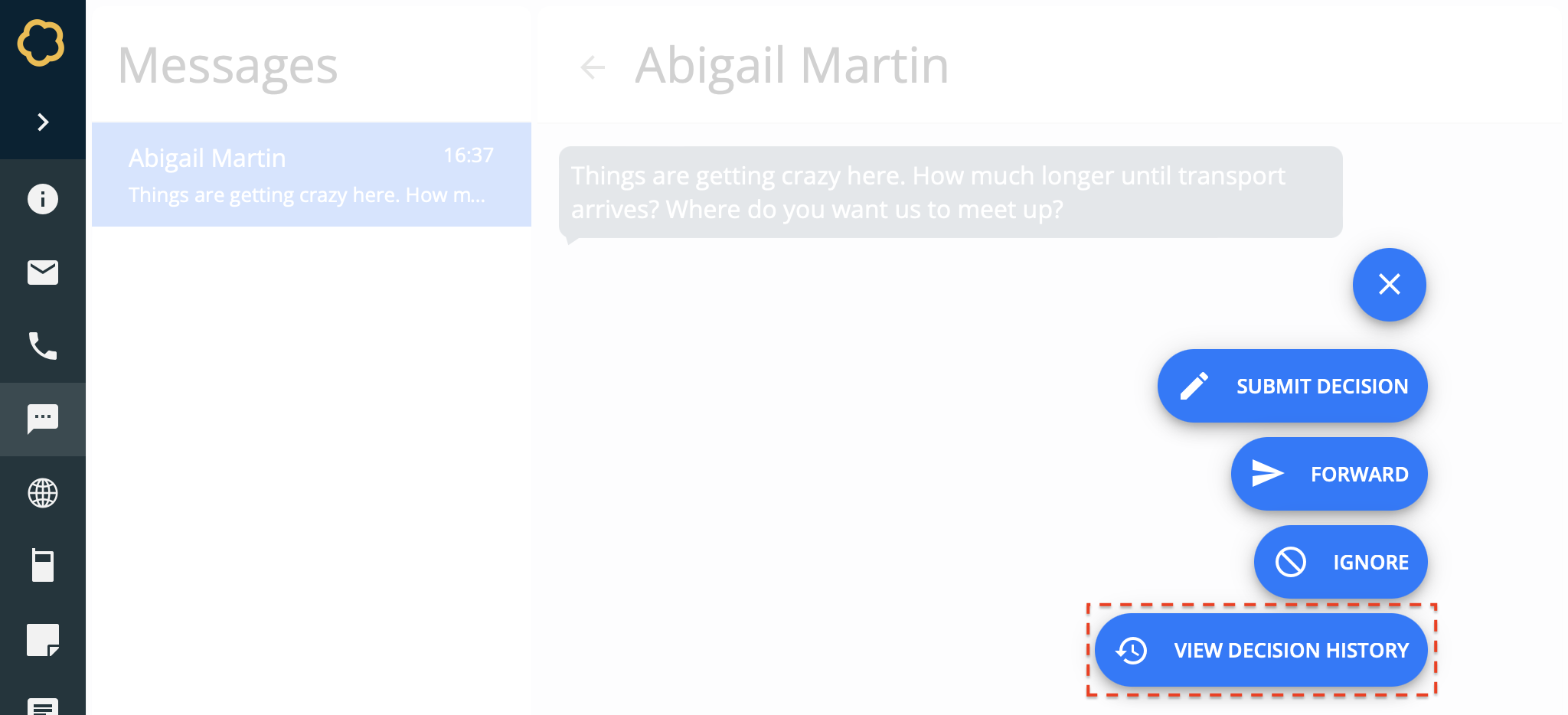
Navigate to the Inject you wish to view your decisions for.
Open the Decision Menu for that specific inject.
Select View Decision History.
Each decision you have made for that inject is displayed in time order.