
Recording Audio
Nest allows you to record audio messages for your injects directly into the platform, without the need for any external applications. Recording audio is featured in injects such as telephone calls, walkie talkie transmissions, and social media posts.
To record audio
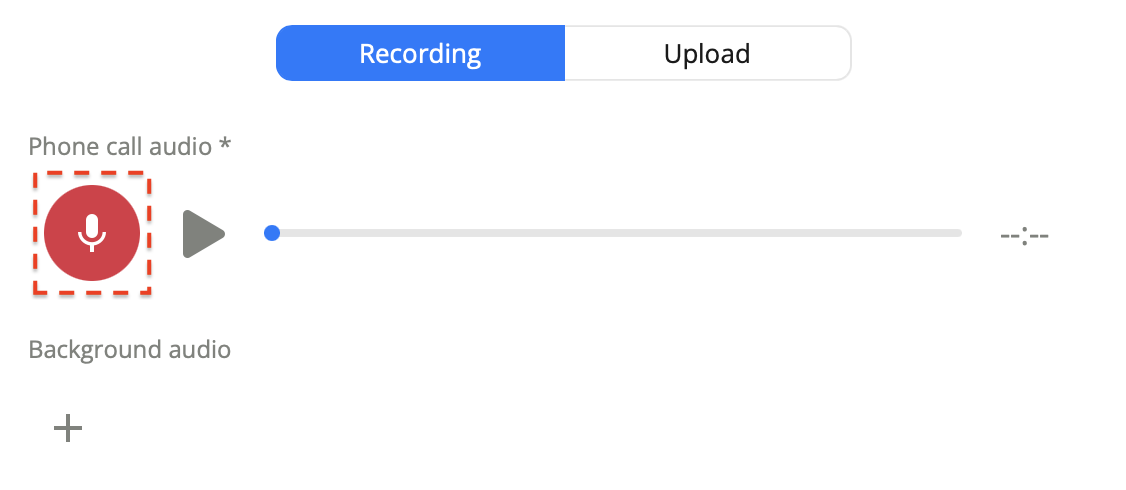
Select Record. Your device may ask permission to use your microphone. Accept this to continue.
Wait for the symbol to change from Record to Stop.
Start speaking into your microphone to capture your message.
To stop recording, select Stop.
Your audio is now recorded.
To preview your recording
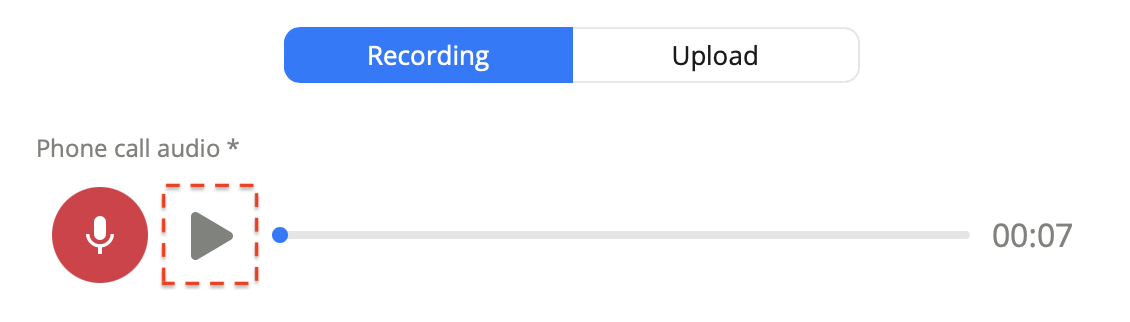
Select Play to start listening to your recording.
Drag the slider to skip around to different parts of the recording.
To add background audio
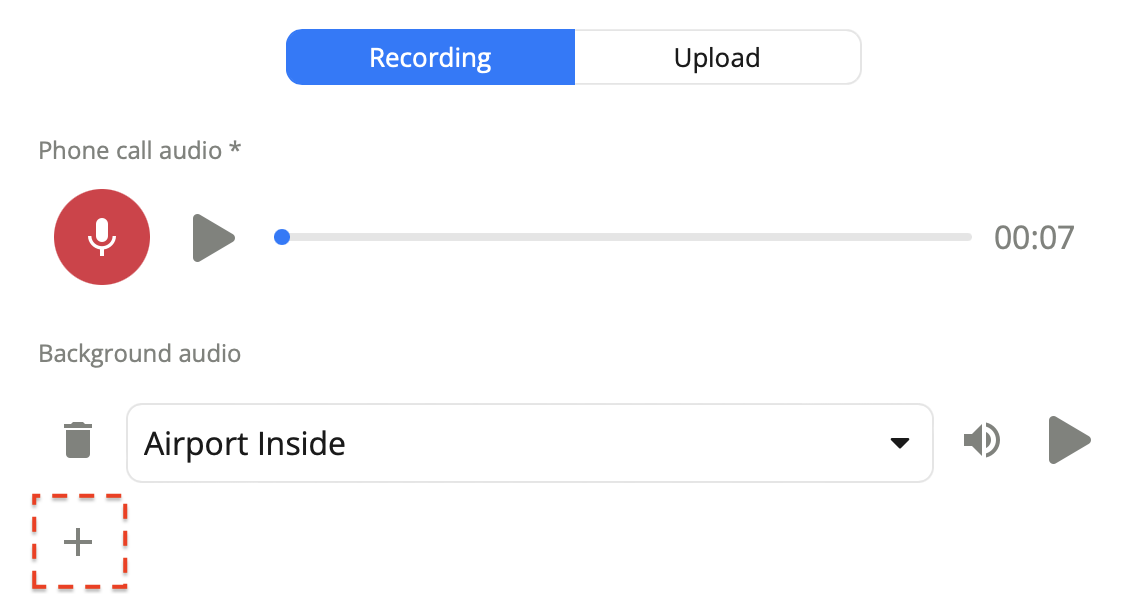
Nest supports adding multiple background sounds to your main audio message.
In the Background Audio area, select Create.
Nest provides various background sounds you can mix in with your main audio. Use the dropdown menu to select which background audio you wish to use.
Preview the background audio by selecting Play.
To adjust the volume of the background audio, select Volume, then adjust the slider level as needed.
Your background audio is added. Previewing your main audio will also include this new background audio. You can delete background sounds by selecting Delete.
To change your recording
If you wish to rerecord your audio message, simply select Record. This will delete your original recording, and start a new one.